Written and tested by the MD Converter editorial team
Markdown Document Converter Page Breaks: Click, Drag, and Image Breaks
Control page breaks in Markdown Document Converter: click blocks to insert or remove breaks, drag handles to move them, break before images, read overflow warnings, and undo with history.
What you'll learn
- How to click a block in Preview to insert or remove a page break
- How to drag the ⋮⋮ handle to move a break
- How to toggle a break before an image
- How to read the orange overflow warnings and fix them
- What to check when breaks do not behave as expected
Aimed at anyone who needs clean PDF pagination for specs, reports, or proposals without rewriting the Markdown. For general Markdown, HTML, and CSS techniques, see How to Control Page Breaks in Markdown PDF.
How page breaks work in Preview
Markdown is a flowing text format with no native page concept. Automatic pagination can leave headings stranded or split tables.
In the Markdown Document Converter PDF tool, you adjust breaks on a preview split into A4 portrait pages, and the Markdown file is never changed. Breaks sit at block boundaries (headings, paragraphs, lists, tables, code blocks, images); you cannot place one in the middle of a paragraph.
| Action | Where | Effect |
|---|---|---|
| Click a block | Preview body | Inserts or removes a break before that block |
| Drag the ⋮⋮ handle | Break line | Moves an existing break to another block boundary |
| Click × | Break line | Deletes that break |
| Image break button | Selected image | Toggles a break before the image |
Click a block to insert or remove a break
- Open Markdown to PDF and import your .md file.
- In Preview, hover over the block that should start the next page.
- Click when "+ Insert page break" appears.
- Click the same block again to remove the break.
If a heading is stranded at the bottom of a page, click that heading's block so the next page starts with it.
Drag the handle to move a break
Each break is shown as a dashed line with a ⋮⋮ handle and an × in the middle.
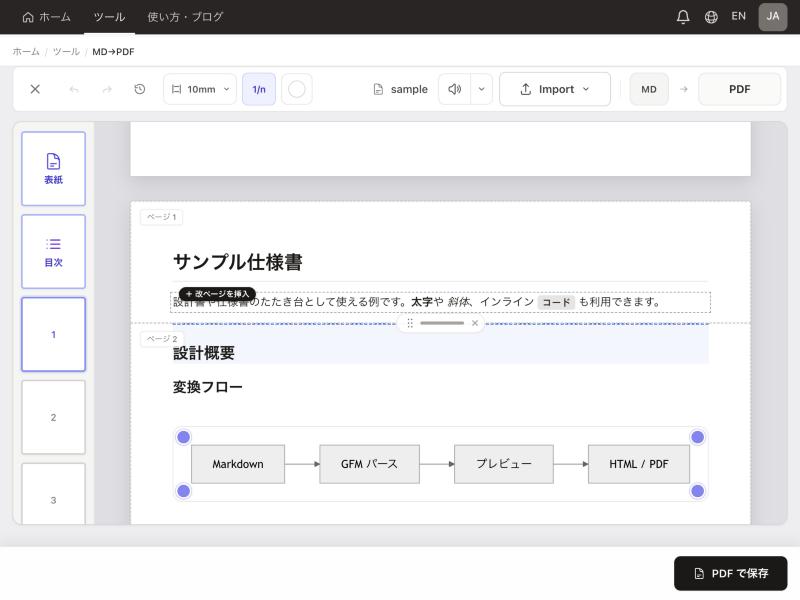
Figure: Drag the handle on a break line to move it between blocks. (Screenshot of the Japanese interface.)
- Grab the ⋮⋮ handle.
- Drag up or down and release on the target block boundary.
- Click × to delete a break you no longer need.
For a large move, deleting the break with × and clicking the target block can be faster than dragging.
Break before an image
Click an image or diagram to select it. Resize handles, alignment (left, center, right), and a "Toggle page break before this image" button appear. When a large figure does not fit at the bottom of a page, a break before it starts the figure at the top of the next page.
Making the image smaller may also let it fit on the earlier page. Check that a figure and its caption are not split across pages.
Check overflow warnings
Content that exceeds one page's height is outlined in orange, and the page strip on the left marks that page. In the PDF or printout, overflow continues on the next page.
Ways to fix it:
- Insert a break before the block that overflows
- Shrink a large image
- Reduce the margin in the toolbar (choose 10 to 30 mm)
Tables and code blocks are set by default to avoid splitting across pages where possible. A table or code block longer than one page still splits, so divide it at a logical point or start it at the top of a page.
Undo adjustments
Use Undo / Redo in the toolbar (⌘Z / Ctrl+Z, ⌘⇧Z / Ctrl+Y) to step through page-break and image adjustments. The history (clock icon) lists entries such as "Added a page break on page 3" and lets you jump back to any point.
When breaks don't behave as expected
I want a break in the middle of a paragraph
Breaks can only sit at block boundaries. Split the paragraph in your Markdown source and import it again.
Breaks shifted after adding a cover or TOC
Cover and TOC pages change page numbers, so breaks can appear to shift. Finish the cover and TOC first, then adjust breaks.
Re-importing the document changed my adjustments
Editing headings or paragraphs changes pagination. Do the final break adjustments after the text is settled.
The PDF looks different from Preview
In the print dialog:
- Set paper size to A4 (Preview uses A4 portrait)
- Set scale to 100%
- Start with margins set to None (margins are already set in the tool)
- Turn off headers and footers
Google Chrome gives the most reliable output. See Why Markdown PDFs and Print Look Broken for details.
Local processing and external requests
Local files and pasted Markdown are converted and previewed in your browser; their source is not uploaded to this site's servers for conversion. External images and web fonts still contact their respective hosts.
FAQ
Are page-break adjustments saved?
A page reload keeps them in the browser. Navigating from the tool to another page, or opening the tool fresh, resets them, so save the PDF when you finish.
Are breaks written into my Markdown file?
No. Breaks set in Preview affect only the PDF output; the original .md file is unchanged.
Can I add page numbers?
Yes. Toggle page numbers with the "1/n" button in the toolbar, and turn off the print dialog's headers and footers.
Can I use paper sizes other than A4?
The PDF tool lays out pages as A4 portrait. Select A4 in the print dialog as well.
Related articles
- How-to & BlogMarkdown PDF Page Break CSS: Insert Breaks AnywhereInsert Markdown PDF page breaks with break-before, break-after, and break-inside CSS. Includes copy-ready recipes, blank-page fixes, and a final print checklist.Read article
- How-to & BlogWhy Markdown PDFs and Print Look Broken — Causes and FixesFix common Markdown-to-PDF and print issues—margins, breaks, missing backgrounds, font substitution, overflowing tables. Includes a triage checklist and browser comparison notes.Read article
- How-to & BlogMarkdown PDF Margins: @page, Print Dialog, and mm SettingsWhy Markdown PDF margins feel wrong—@page vs body padding, browser print dialog presets, asymmetric binding margins, and mm specs. Fix and verify margins step by step.Read article
- How-to & BlogMarkdown Document Converter User Guide: Features and StepsFull Markdown Document Converter guide: import options, every toolbar control, presets, page-break and image adjustments, cover and TOC pages, HTML download, and PDF export.Read article